
UVK Help: Scan and create log


You can access this section by clicking Scan and create log, in the Home section.
Content index:
What does the scan do?
The Scan and create log section creates a detailed log containing information about your operating system, running processes, autorun entries, IE Toolbars, BHO and shell execute hooks, image hijacks, global context menus, all services and drivers, scheduled tasks, the windows uninstall list, the contents of system important folders, LSA providers blocked hosts, recent files and folders, and much more.
You can send the log to a professional or geek friend, post it in a forum, or analyze it yourself.
Users that know how to read the log can easily find any infected files or registry entries, and detect performance, software and hardware problems. Learn more about the UVK log.
Setting the scan options...
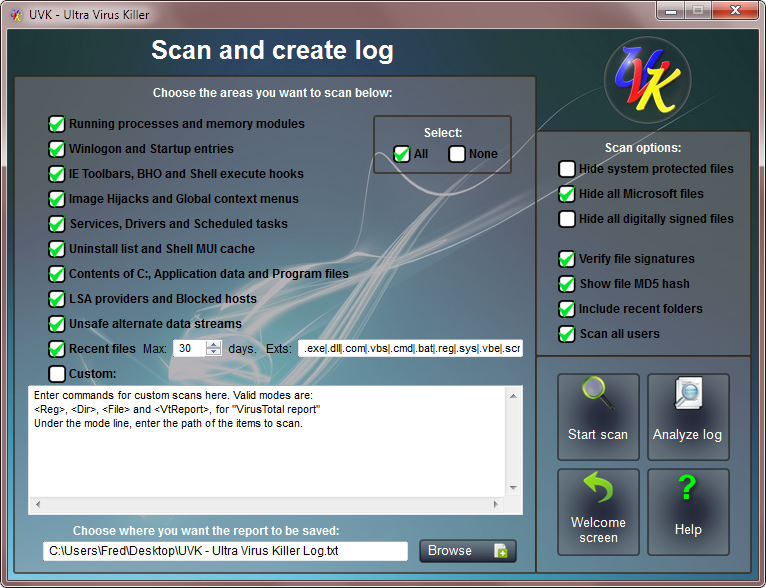
Select the areas you want to scan by checking the corresponding checkboxes, in the left pane. By default, all areas are selected. You can quickly uncheck all check boxes by pressing the None radio button. To check everything again, press the All radio button.
However, If you choose not to verify the file signatures, UVK will check the Microsoft files based on the version resource info. This will reduce the scan time, but it doesn't ensure the authenticity of the file's publisher. We highly recommend to scan all areas and verify file signatures. After all, the complete scan will only take a few minutes.
If Recent files is checked, UVK will search for recent files and write the ones that match the given criteria to the log.
The criteria is based on the file's last modification time and the file name. The last modify time is set in the input between Max and days.
e.g. If the Max file age is 30, UVK will write the files modified/created within the last 30 days, and that match the given file name pattern.
The pattern is very easy to understand, the default is .exe|.dll|.com|.vbs|.cmd|.bat|.reg|.sys|.vbe, which makes UVK write all the executables, DLLs, vbs and cmd batch scripts, reg files and drivers found and having the required timestamp to the log.
Several patterns must be separated by | (vertical bar). Wild cards are supported, like in AnivirusXp*|xxx_*. You can change this pattern to whatever you want.
Select the desired scan options in the right top pane.
 Hide
system protected files: Select this option if you want UVK to
show only non system protected files in the log.
Hide
system protected files: Select this option if you want UVK to
show only non system protected files in the log.
Hide all
Microsoft files: This is the default option. When this option is
selected, lines containing Microsoft files will not be written in
the log.
Hide all
digitally signed files: This option will automatically enable
Verify file signatures. Only non signed files will be written in
the log.
Verify
file signatures: When this option is selected, the file
signatures will be verified, ensuring the authenticity of their
publisher.
Show
file MD5 hash: Whether to write the file's MD5 hash in the log.
This will allow to retrieve the VirusTotal report of the file with
the
Log analyzer.
Include
recent folders: This option is only valid for the Recent files
scan. Defines whether to write recent folders in the log. The
timestamp base is the same that was set for the recent files scan.
Scan all
users: Whether to perform the scans for all users or just the
current user.
Custom scans
The Custom scans feature allows you to scan specific files, folders or registry entries, and write the corresponding information to the log. You can also retrieve the VirusTotal report of the desired files, and write the results to the log.
You use Mode keywords like in the custom commands for the UVK scripts. Supported Mode keywords for the custom scans are: <Reg>, <Dir>, <File> and <VTReport>.
The <Reg> exports the registry keys you specify to the log. The registry entries will be exported in the same format as regedit. e.g. If you want to write the registry entries under HKLM\SOFTWARE\UVK just use:
<Reg>
HKLM\SOFTWARE\UVK
You can export several registry keys, like:
<Reg>
HKCU\Software\UVK
HKEY_CLASSES_ROOT\exefile
HKLM\SOFTWARE\Microsoft\Windows NT\CurrentVersion\Winlogon
The <Dir> mode writes the contents of the folders you specify to the log. The info will be in the format: Mode | Path | Size | Description | MD5 hash | File signature. You can specify several folders, and use environment variables:
<Dir>
%Appdata%
%SystemDir%\Wbem
C:\Users
The <File> mode writes information about the files you specify to the log. Again you can specify several file paths and use environment variables. The info will be in the format: Mode | Path | Description | MD5 hash | File signature:
<File>
%SystemDir%\shell32.dll
%WinDir%\regedit.exe
The <VTReport> mode writes the file's VirusTotal report result to the log. You can use this feature for several files, but only one file per line. Environment variables are supported. The info will be in the format: Mode | Path | VirusTotal result.
<VTReport>
%SystemDir%\shell32.dll
%WinDir%\regedit.exe
The results for the files in the example above can be something like this:
VtReport> | C:\Windows\system32\shell32.dll | VT
infection rate: 0/44 (0.0%)
<VtReport> | C:\Windows\regedit.exe | VT infection rate: 0/43 (0.0%)
The expression VT infection rate: 0/43 (0.0%) means the file has been analyzed by 43 anti-virus programs and all all of them said the fie was clean. If two programs had given a positive result, it would be VT infection rate: 2/43 (4.6%), and so on.
Note that the results from VIrusTotal can take a while, depending on how overloaded the server is, and your internet speed. VirusTotal is a very well known service, and used by millions of people, so be patient, and if it fails once, just try again.
You can combine several modes:
<Reg>
HKCU\Software\UVK
HKEY_CLASSES_ROOT\exefile
<Dir>
%Appdata%
%SystemDir%\Wbem
<File>
%SystemDir%\shell32.dll
%WinDir%\regedit.exe
<VTReport>
%SystemDir%\shell32.dll
%WinDir%\regedit.exe
Start the scan
The defaut log file is specified in the text input box at the bottom of the window.
Press Browse if you wish to save the log under a different name or path. The default path is the current user's desktop and the default name is UVK - Ultra Virus Killer Log.txt
When ready, press Start scan. The scan will start. A progress bar will show you details of the scan's progress.
You will be able to stop the scan whenever you want.
Open and analyze the log
After the scan is complete created, log will be automatically opened with the Log analyzer. You'll be able to find the log file at the location you chose for it to be created.
Press Analyze log to open the log with the Log analyzer, a text editor included with UVK and specially created to simplify searching for infected items on the log and create UVK scripts.
Get help or exit the section
If you want to leave the section, and go back to the main menu, press Home.
Whenever you want to view this help page, press Help.
