
UVK Help - System immunization


You can access this module by clicking System Immunization, in the Home section,
Content index:
Why do I need the System immunization
Selecting the areas to immunize
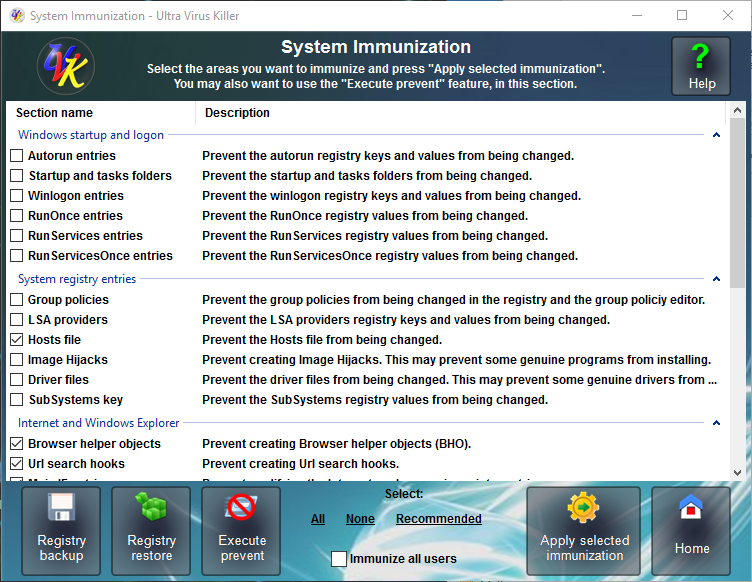
System Immunization overview
The System immunization helps you to prevent your computer from being infected by protecting the registry and file system most vunlnerable areas from changes. It doesn't use any resources and only takes a few seconds to be configured.
UVK 6.8+ also includes a new feature: Execute prevent. This feature provides you with a new level of protection against viruses. It works by adding a few Software restriction policies directly to the Windows registry. On their turn, these policies prevent running files in specific directories, and optionally their sub directories.
You can also backup and restore your registry in the System immunization section.
Important:
The System immunization doesn't replace an anti-virus software, but it's a fine lightwheith complement, compatible with any other malware protection software.
The System immunization can prevent some genuine programs and Windows updates from being installed/uninstalled. This may happen only for the areas not marked as Recommnded. If you get access denied errors when installing trustful software after immunizing your system, try temporarily removing the System immunization.
Why do I need the System immunization
You have many reasons to use the System immunization. Below are the main ones.
 If you
get infected with a very recent malware and your anti-virus software doesn't detect
it yet, your computer will still be protected against the most
common infections.
If you
get infected with a very recent malware and your anti-virus software doesn't detect
it yet, your computer will still be protected against the most
common infections.
The
System immunization doesn't use any resources and doesn't generate false
positives.
Not only
does the
System immunization protect your computer from infections, but it
also prevents unwanted software such as Browser toolbars and other
ad-ons from being installed.
The
System immunization helps to keep the good performance of your computer by
preventing programs from being added to the windows startup, which
will use resources continuously.
You can
select the areas to be immunized.
You can
quickly un-immunize (restore access to) one, several or all the areas you have
previously immunized.
The
System immunization protects your windows settings from being changed by
malware, common software or un-experienced users by preventing the
group policies, desktop and Windows explorer registry entries from
being changed.
The
System immunization can protect your driver files from being replaced by
rootkits.
UVK uses a special method to make as
dificult as posible for malware and non administrator users to
restore the access to modifying the immunized ares.
Selecting the areas to immunize
Select ()
the areas you want to immunize by ticking the corresponding checkbox.
To quickly select the recommended areas above, press Recommended, in the lower pane. You can also press All or None to quickly select all the areas, or none, respectively.
Windows startup and logon:
Autorun entries (user choice) - These are the most commonly
used registry entries to set programs to be run on the Windows
startup and user logon. You can quickly un-immunize this area to
allow a new program to be added to the list, and then immunize it
again. While this area is immunized, no programs can be added or
removed.
Startup and tasks folders (user choice) - These two folders
are used to run programs either at windows startup (startup folder)
or at a specific time or date (tasks folder). While this area is
immunized no files can be added or deleted in these folders.
Winlogon entries (user choice) - This is a very vulnerable
area to infections. Malware often use it to replace the windows
shell application (explorer.exe) and the userinit application
(userinit.exe) with their infected files. Un-imunize this area only
if you're installing a trusted application to replace the windows
shell, and immunize it again afterwards.
RunOnce entries (user choice)
- While this area is
often used by malware to run their files once after reboot, it is
also used by common software to complete install or uninstall on
reboot. From a security view, it may be helpful to immunize
this area, but you sould think of
un-immunize it if you install or uninstall software that may need to
delete or modify files on reboot. The system will still have access
to modify these entries even when they are immunized.
RunServices entries (user choice)
- This area is no longer used by modern applications. But malware
can still use it to run their infected services once upon reboot.
RunServicesOnce entries (user choice)
- While some legacy applications may use this area to run their
services once after reboot, it can also be used by malware to do the
same thing.
System registry entries:
Group policies (user choice) - UVK will prevent the group
poilicies from being changed either using gpedit.exe or modifying
the corresponding registry entries. Un-immunize this area only if
you want to modify the group policies yourself.
Lsa providers (user choice) - This area is oftenly used by
malware to infect the Windows security providers.
Hosts file (recommended) - The hosts file is very oftenly
used by malware to create internet redirects and prevent access to
Microsoft and Anti-virus websites. Immunizing this area will protect
the hosts file from being modified.
Image Hijacks (user choice) - Another very vulnerable area
which is used by malware to run infected files instead of system
files.
Driver files (user choice) - Some viruses replace the
driver files with rootkits. Immunizing this area will prevent the
driver files from being modified or deleted. However, you will
probably have to un-immunize this area to update non windows
drivers.
SubSystems key (user choice) - Prevent the values under the
HKLM\SYSTEM\CurrentControlSet\Control\Session
Manager\SubSystems registry key from being changed. These
values are commonly used by modern malware to load their infected
dll files.
Internet and Windows explorer:
Browser helper objects (recommended) - Prevent Internet
explorer BHO registry keys from being modified. This will prevent
adding toolbars and ad-ons to Internet explorer.
Url search hooks (recommended) - Prevent the Url search
hooks registry keys from being modified.
IE main entries (recommended) - Prevent changes to
the Internet explorer main registry keys. This will prevent
modifying the Internet explorer welcome pages and other settings.
IE toolbars and search providers (recommended) - Prevent
adding toolbars and search providers to Intenet explorer.
Internet settings (recommended) - Prevent changes to the
internet settings.
Explorer registry entries (user choice) - Prevent modifying
the Windows explorer settings. You must un-immunize this area to be
able to change Windows explorer settings such as the folder view, or
displaying the hidden files and folders.
Shell execute hooks (recommended) - Prevent the Windows
explorer Shell execute hooks registry keys from being modified.
Desktop registry entries (recommended) - Prevent the
Desktop registry keys from being modified.
Start menu (user choice) - Prevent the Start menu from
being deleted.
Programs will still be able to create new files and folders in the
start menu, but they will not be allowed to delete the existing
ones.
Google Chrome:
Preferences (recommended) - Prevent the Google Chrome's
preferences from being changed.
Secure preferences (recommended) - Prevent the Google Chrome's
secure preferences from being changed.
Extensions (recommended) - Prevent adding or removing extensions
to Chrome.
Chrome's Group Policies (recommended) - Prevent
changing Chrome's Group Policies.
Mozilla Firefox:
Ad-Ons (recommended) - Prevent changing Mozilla Firefox's ad-ons.
Extensions (recommended) - Prevent changing Mozilla Firefox's extensions.
Search providers (recommended) - Prevent changing Mozilla Firefox's search providers.
Settings (recommended) - Prevent
changing Mozilla Firefox's settings.
Applying the selected immunization
When you have configured the areas you wish to immunize/un-immunize, click Apply selected immunization, and confirm to start the immunization. It will only take a few seconds to immunize all the areas, it's a very fast process.
Note: UVK will automatically un-immunize the un-checked areas, if they have been previously immunized.
And that's it! When you come back to this section again, the immunized areas will automatically be selected. If you wish to un-immunize one or several specific areas, just uncheck the corresponding checkboxes and click Apply selected immunization again.
The users who have purchased a UVK license key will also be able to choose whether to immunize the registry keys and folders for all the users or just the current user. For more information about the UVK license key, click here.
Registry backup and restore
This section also allows you to make a backup of your windows registry, which you can restore later if your system gets damaged. Note that the Restore registry option will be disabled while you don't make your first registry backup.
To backup the registry, just click Backup registry and confirm by clicking Yes.
To restore a previous registry backup, click Restore registry, choose if you want to restore the HKEY_LOCAL_MACHINE or the HKEY_CURRENT_USER, or Both rootkeys, and click OK. UVK will then start restoring your registry. Usually it takes a few minutes to restore the both rootkeys.
